Every two weeks or so, UNFI sends you a Direct Deposit Advice (also called a remittance advice or ACH advice) that lists every invoice and deduction included in your payment. For most CPG finance teams, processing this document is a multi-hour manual exercise — downloading the PDF, opening QuickBooks, creating credit memos line by line, and hoping the numbers reconcile at the end.
This guide walks through the complete process so you understand exactly what you're looking at and how to get it into QuickBooks correctly.
TL;DR
- A UNFI Direct Deposit Advice (DDA) is a multi-page PDF listing every invoice, deduction, and repayment in a single ACH payment.
- Processing it manually in QuickBooks takes 2–4 hours: code deductions, build credit memos, match invoices, post the payment.
- The six steps below walk through the full workflow — from opening the PDF to reconciling the deposit in QBO.
- RemitParse automates the entire process: upload the PDF, review, and post to QuickBooks in one step.
What You're Working With
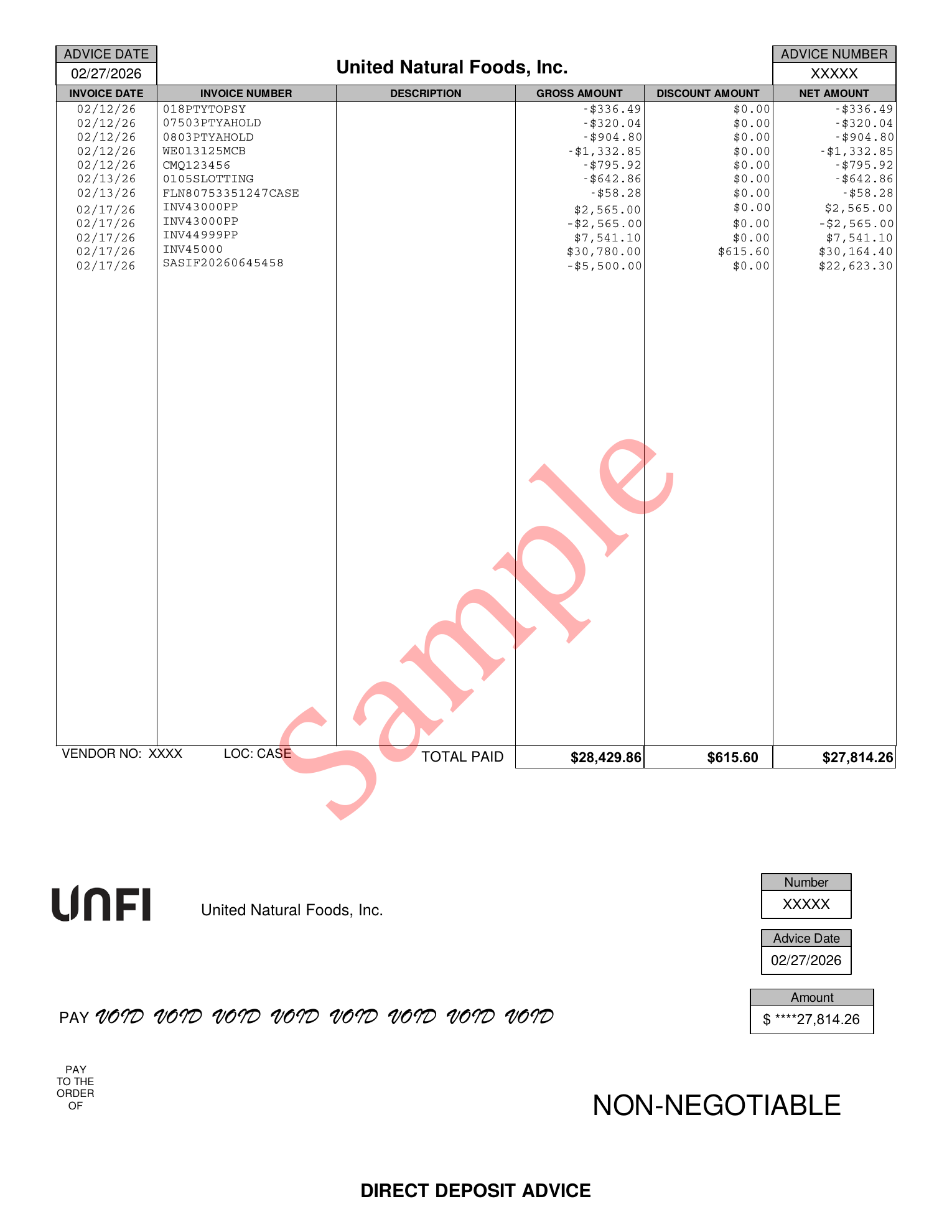
Below is a sample UNFI Direct Deposit Advice — the PDF your finance team receives each payment cycle. Every line below the TOTAL PAID header is a transaction that needs to be coded before it can enter QuickBooks.
Step 1: Understand the UNFI Remittance Format
UNFI's remittance advice is a PDF with a header section and a transaction table. Here's what each part contains:
Header: Advice date, advice number, vendor number, and location code. The advice number is your primary reference — you'll use it for your credit memo number in QuickBooks.
Transaction table columns:
- Invoice Date — the date on the original invoice
- Invoice Number — UNFI's reference number for the transaction
- Description — populated for deductions (e.g. "MCB Chargeback", "Quality Chargeback")
- Gross Amount — the original invoice or deduction amount
- Discount Amount — early payment discount taken (2% of invoice value)
- Net Amount — what was actually applied to your payment
Footer: TOTAL PAID line showing the net amount of your ACH deposit. This is your reconciliation target.
Step 2: Identify the Transaction Types
Every row in the remittance falls into one of these categories:
| Type | How to Identify | Net Amount |
|---|---|---|
| Invoice paid | Your INV number, no PP suffix | Positive |
| Invoice prepaid | Your INV number + "PP" suffix | Positive |
| Prepayment settlement | Same INV number without PP (offsets a prepaid) | Negative |
| Deduction / chargeback | UNFI-assigned code (MCB, CMQ, WE, D, etc.) | Negative |
| Early payment discount | Non-zero Discount Amount column | Negative |
Prepaid invoices: When UNFI pays an invoice early (before it's due), they record it as a prepayment with a PP suffix. When the invoice actually comes due, they offset it with a negative entry. Both rows should net to zero in your reconciliation — don't double-count them.
Step 3: Code Each Deduction
For QuickBooks purposes, deductions (negative rows) need to be assigned to the right expense or contra-revenue account. Common deduction types and how to categorize them:
| Invoice Prefix | Deduction Type | What It Means | QBO Product/Service → GL Account |
|---|---|---|---|
| MCB / WE | MCB Chargeback | Manufacturer chargeback — UNFI passed a retailer discount or compliance penalty back to you | Chargebacks → Chargebacks Expense |
| CMQ | Quality Chargeback | Product failed a quality inspection at the DC — spoilage, damage, or shelf-life issue | Quality Claims → Quality Claims Expense |
| D + number | Inventory Disposition | UNFI disposed of unsaleable product and is recovering cost | Disposition → Spoilage / Disposition Expense |
| FSRHT / FSRTFMG | Fair Share / Retail Support | Agreed trade support contribution — retailer promotional programs funded through UNFI | Trade Support → Trade Spending |
| 3PTY | Third-Party Retailer Deduction | UNFI deducting on behalf of a retail customer (e.g. Whole Foods, Sprouts) for ads or promos | Retail Ads → Retail Ads / Trade Spending |
| CPNxxx | Coupon / Promotion | Scan-based or off-invoice promotional discount applied at the distributor level | Promotions → Promotions Expense |
| FLNRLM | Freight / Fuel Surcharge | Logistics compliance fee — often related to delivery timing, routing, or fuel cost recovery | Freight → Freight Expense |
| Discount Amount column | Early Payment Discount | 2% cash discount taken when UNFI pays within 10 days of invoice — appears in its own column, not as a line item | Early Payment Discount → Early Payment Discount (contra revenue) |
In QuickBooks Online, each row above maps to a Product/Service on your credit memo line items. The Product/Service is linked to the GL account in your chart of accounts — so consistent naming here drives consistent reporting downstream.
Step 4: Create Credit Memos in QuickBooks Online
In QuickBooks Online, UNFI deductions are entered as credit memos against your UNFI customer account. Each deduction becomes a line item coded to the appropriate Product/Service and GL account, with the advice number as the reference and the advice date as the memo date.
Done manually, this means opening QuickBooks, creating a new credit memo, and entering each row one at a time — with the remittance PDF open alongside it. For a remittance with 30+ deduction rows, that's 30+ manual entries, each requiring you to look up the right account, format the memo field consistently, and not make a typo.
Important: QuickBooks credit memos cannot have a negative total. Individual lines can be negative, but the memo as a whole must be positive or zero. If deductions exceed invoices in a given memo, split them across multiple credit memos. RemitParse handles this automatically.
RemitParse posts the credit memo directly to QuickBooks from the parsed grid — one click, no manual entry. The advice number, advice date, customer, line items, amounts, and memo fields are all pre-populated from the remittance. You review, confirm, and post.
Step 5: Match Invoices and Post the Payment
Creating the credit memo is only half the cash application. The other half is applying the payment — recording that UNFI paid specific invoices and matching the ACH deposit to the right open receivables in QuickBooks.
Manually, this means going back into QBO, finding each open invoice listed on the remittance, and applying the payment against them one by one. If UNFI paid 8 invoices in a single remittance, that's 8 separate lookups and applications.
RemitParse's Invoice Match tool pulls your open UNFI invoices directly from QuickBooks and matches them against the remittance — by invoice number, with normalization for UNFI's suffix conventions (PP, CBPB, SSA, IA). You confirm the matches and post the payment in one step. The ACH amount, customer, invoices applied, and deposit account are all handled automatically.
The full flow in RemitParse:
- Upload the UNFI remittance PDF
- Review the parsed grid and code any uncoded deductions
- Post the credit memo to QuickBooks — one click
- Run Invoice Match — RemitParse pulls open invoices from QBO and matches them
- Confirm matches and post the payment — applied to the matched invoices, credit memo applied automatically
Step 6: Reconcile
Before finalizing, verify your numbers add up correctly:
- Sum of all invoice gross amounts (paid + prepaid)
- Minus all deduction amounts
- Minus early payment discount
- Plus prepayment settlement offset
- = TOTAL PAID on the remittance
If your difference is anything other than $0.00, find the discrepancy before posting. Common causes: a row missed on page 2, a discount amount counted twice, or a prepaid offset that wasn't excluded.
RemitParse shows a live reconciliation panel as soon as the remittance is parsed — Deductions, Invoices Paid, Invoices Prepaid, EPD, and the running difference against the remittance total. If something doesn't balance, you'll see it before anything touches QuickBooks.
The Manual vs. Automated Approach
Done manually, a single UNFI remittance with 50+ line items takes 2–4 hours. The PDF has to be read line by line, each deduction researched and categorized, credit memos built in QuickBooks one entry at a time, invoices looked up and applied individually, and the payment posted by hand. For brands processing multiple remittances per month, this adds up to a full day of accounting labor every cycle.
RemitParse handles the entire flow: act as a remittance advice parser for the PDF, code deductions, post the credit memo, match invoices, and apply the payment — all without leaving the app or touching a spreadsheet. What used to take hours takes minutes.
Related Guides
These posts cover the broader context around UNFI deductions and how to classify them:
- CPG Cash Application Explained — what cash application is, why it's hard in CPG, and how brands automate it
- UNFI Cash Application with RemitParse — full walkthrough of parsing, invoice matching, and posting to QuickBooks
- UNFI Deduction Codes Explained — what every prefix on your remittance actually means
- KeHE Deductions Explained — KeHE billback types, remittance sources, and how to code them in QuickBooks
- The CPG Deduction Translation Guide — how to align sales, accounting, and finance on the same terminology
- Kroger Remittance Reconciliation — how to decode Supplier Connect payments and the EFT/netting structure
- CPG Deduction Software: TPM vs. Cash Application — do you have a planning problem or an accounting problem?
- RemitParse QuickBooks Setup Guide — connect QBO, configure profiles, and enable Auto-Coding
- Journal Entry Import for QuickBooks Online — upload a CSV or Excel file and post journal entries without re-keying
See it on your own UNFI remittance
Parse the PDF, post the credit memo, match invoices, and apply the payment to QuickBooks — in minutes, not hours.
Start Free Trial →